Channel Management
We support a wide range of distribution channels, organized into three main categories:
- Channel Management (including OTAs such as Booking.com, Priceline, Expedia, and Hotels.com, as well as meta search partners like Google Hotels and TripAdvisor)
- Premium Channel Management (featuring AirBnB, VRBO, Agoda, and 75+ additional OTAs, plus meta partners Trivago and Hotels Combined)
- GDS Connectivity (covering major global distribution systems such as Sabre, Worldspan, Galileo, Amadeus, and DHISCO)
1. General Settings
1.1 What is the purpose of the General page in Channel Management?
The General page allows you to configure and manage your hotel’s connection settings for supported distribution channels, including Booking.com, Expedia, GDS providers, and TripAdvisor.
1.2 How do I connect or disconnect my property from a channel?
Enter your hotel’s code for the desired channel (e.g., Booking.com Hotel Code, Expedia Hotel Code, OnRes GDS Hotel Code) in the corresponding field. To disconnect, simply leave the field empty and save your changes.
1.3 What is the Pricing Model setting?
The Pricing Model must match the configuration in your channel’s portal. For example, Booking.com and Expedia support Standard, Per-Day, or Occupancy Based Pricing. Select the appropriate model from the dropdown to ensure rates are synced correctly.
1.4 What does “Charge GST/Federal Tax only for Virtual Card bookings” mean?
If enabled, GST or Federal Tax will only be applied to bookings paid with a virtual card through the selected channel.
1.5 How do I manage GDS channel codes?
The GDS section displays individual fields for Sabre, Galileo, WorldSpan, Amadeus, and DHISCO codes. These are informational and help you track your property’s identifiers across GDS systems.
1.6 What is TripAdvisor Review Express?
This feature allows you to enable or disable automated review invitations for guests via TripAdvisor. Please contact OnRes support to activate this service.
1.7 Why are some fields read-only or disabled?
Certain fields may be restricted based on your user role or channel configuration. Administrative privileges are required to edit all settings.
2. Booking.com and Expedia Mapping Pages
2.1 What is the purpose of the Booking.com and Expedia pages?
The Booking.com and Expedia pages provide a view of how your OnRes products and rate plans are mapped to Booking.com and Expedia rooms and rate plans.
This helps you verify that your inventory and rates are correctly linked between OnRes and Booking.com / Expedia.
2.2 What information is shown in the Booking.com (or Expedia) Mapping Table?
The Booking.com (or Expedia) Mapping Table displays each Booking.com (or Expedia) product, its associated room code, rate plan, and rate ID.
This allows you to see how your rooms and rates are configured on Booking.com (or Expedia).
2.3 What is the OnRes - Booking.com (or Expedia) Mapping Table?
This table shows how your OnRes products and rate plans correspond to Booking.com (or Expedia) room codes and rate IDs.
It is useful for confirming that your OnRes inventory is correctly mapped to Booking.com (or Expedia).
2.4 How can I sort the mapping results?
You can sort the mapping results by Room Code or Product Name, in ascending or descending order, using the "Sort Results By" dropdown at the top of the page.
2.5 What does the Pricing Model information mean?
The Pricing Model indicates how your rates are structured for Booking.com (e.g., Standard Pricing or Occupancy Based Pricing). This should match your Booking.com portal settings to ensure correct rate synchronization.
2.6 How do I export my mapping data?
Click the "Export Data" button at the bottom of the page to download your current mapping information in CSV format for review or record-keeping.
2.7 What should I do if my mappings are incorrect or missing?
If you notice incorrect or missing mappings, contact your system administrator or OnRes support to update your product and rate plan configurations.
These mapping info is for viewing only; changes must be made by authorized personnel.
3. Premium Channel Help
3.1 What is the purpose of the Premium Channel page?
The Premium Channel page provides information about advanced channel connectivity options available to your property. It displays options for enabling premium channels and synchronizing your room types and rate plans with these channels.
3.2 How do I enable Premium Channel features?
If you have administrative access, you can enable Premium Channel features by checking the "Enable Premium Channel" box. If you do not have access, you will see instructions to contact OnRes Support or fill in the onboarding questionnaire.
3.3 What does "Create/update room types and rate plans on the Premium channels" do?
After you have set up your room types and rate plans in OnRes, you can use this option to synchronize your property’s configuration with the Premium channels. This ensures that your latest room and rate information is available to connected premium partners.
3.4 What should I do if I am interested in Premium Channel features but do not have access?
If you are interested in Premium Channel features and do not have administrative access, reach out to OnRes Support or fill in the onboarding questionnaire as directed on the page. OnRes will assist you with the activation process.
3.5 How do I set up a promotion or discount for an Airbnb or VRBO listing?
Promotions/discounts for Airbnb and VRBO are configured on the listing itself, from within the Rate Plan Mapping page for that channel. The first couple of steps to get there are the same for both channels; the Discount section is found on a different step of the listing wizard depending on the channel.
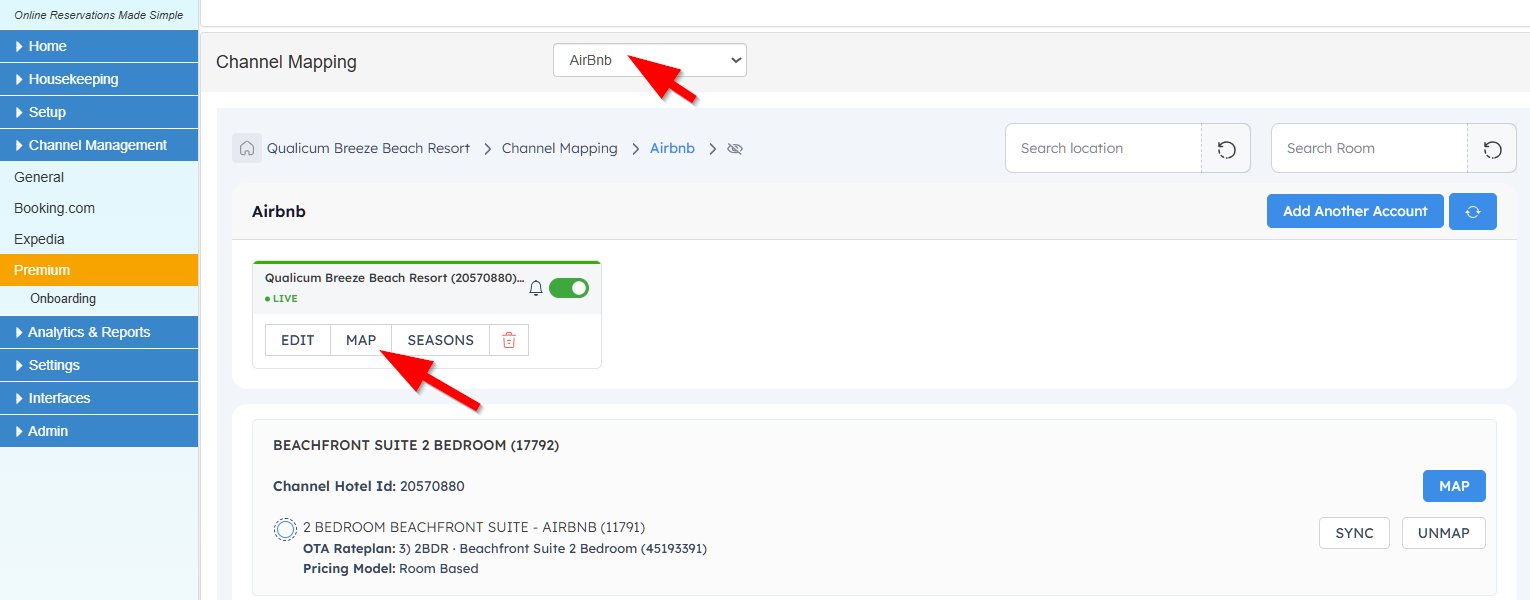
Step 1: Open the channel's Rate Plan Mapping page
Go to Channel Management >> Premium, then select Airbnb (or VRBO) from the dropdown at the top of the page. Find the account/property card and click the Map button.
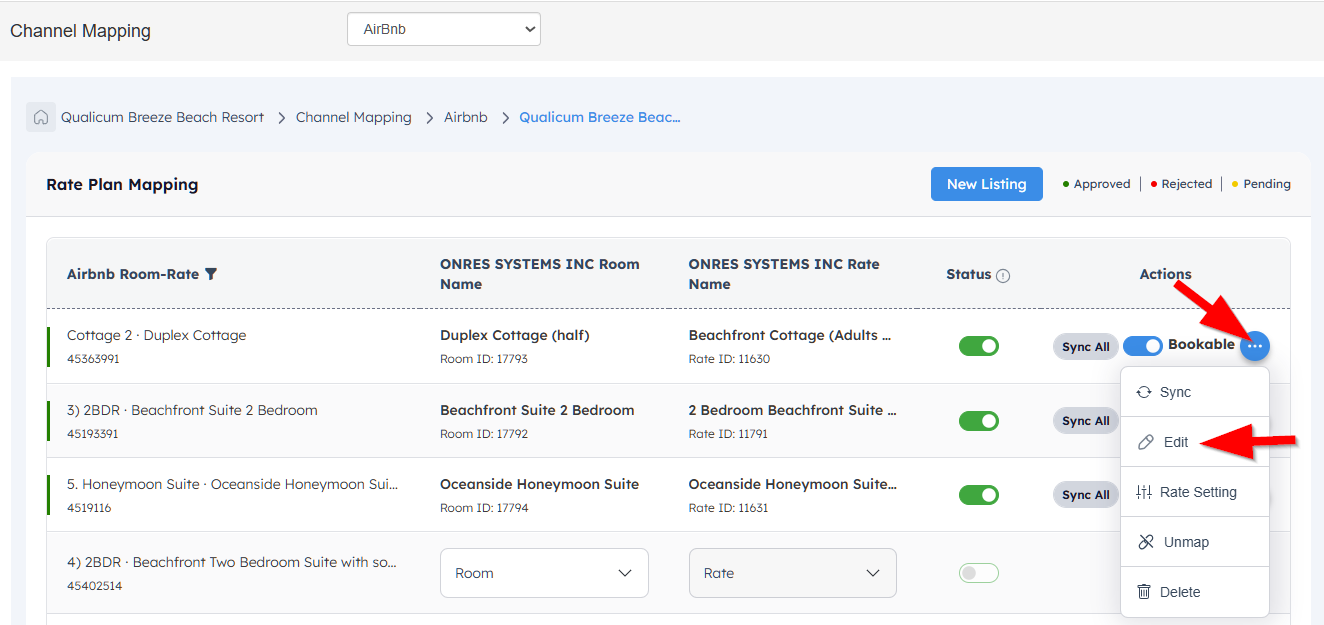
Step 2: Edit the listing
On the Rate Plan Mapping page, find the room/rate row you want to configure, click the "…" (more actions) icon in the Actions column, then choose Edit. This opens the listing wizard on the channel's own site.
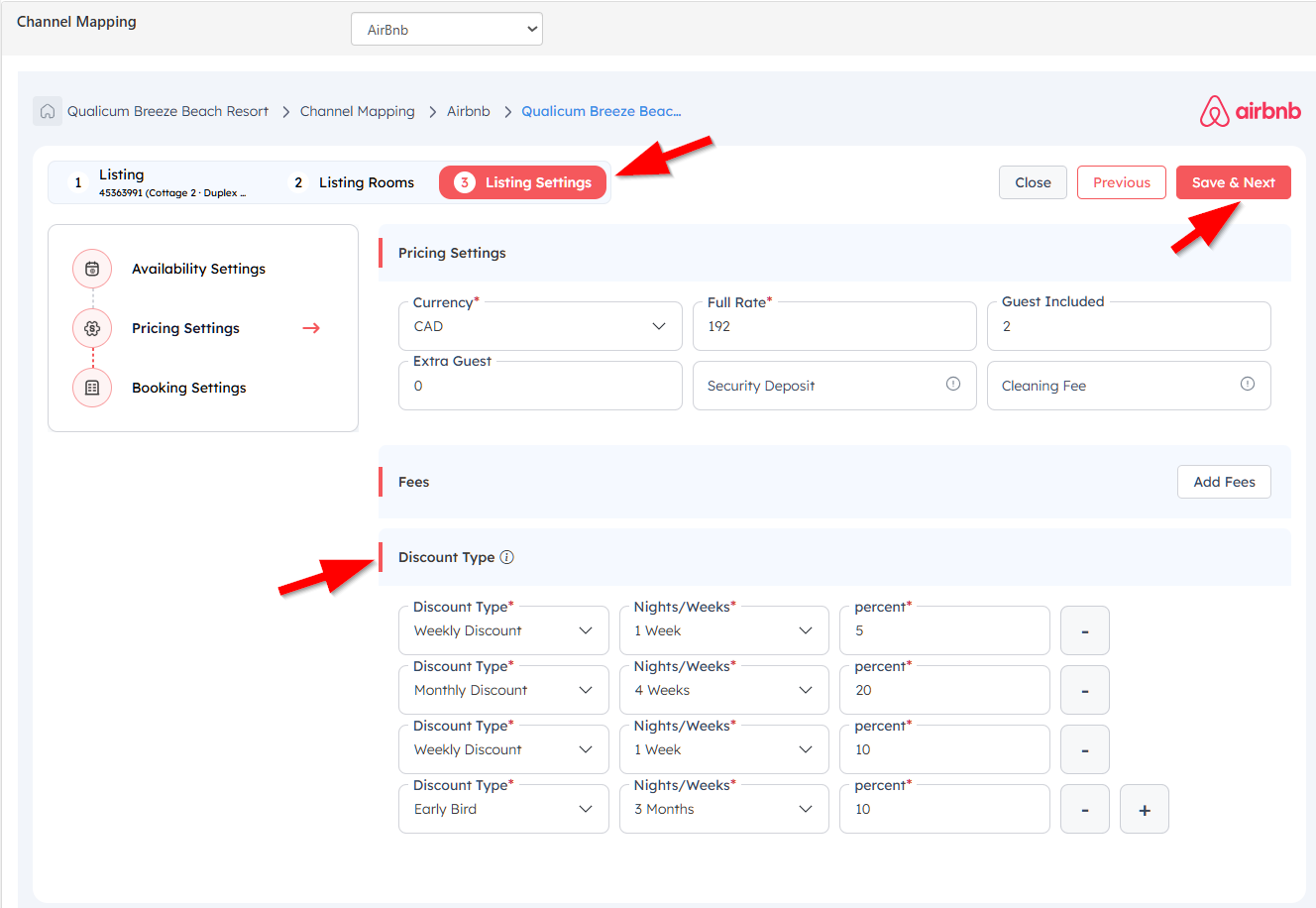
Airbnb — Step 3 "Listing Settings" > Discount Type
Click on step 3 Listing Settings in the wizard, then scroll down to the Discount Type section. Use the + button to add a discount row, and for each row choose the Discount Type (e.g. Weekly Discount, Monthly Discount, Early Bird), the Nights/Weeks it applies to, and the discount percent. You can add multiple rows to stack different discounts. Click Save & Next when you are done.
VRBO — Step 3 "Availability & Booking Settings" > Base Discounts
For VRBO, repeat Step 1 and Step 2 above but select VRBO from the dropdown instead of Airbnb. In the VRBO listing wizard, continue to step 3 Availability & Booking Settings, then under the Base Discounts section, choose a Discount Type from the dropdown and fill in the discount details. Click Save & Next to continue.
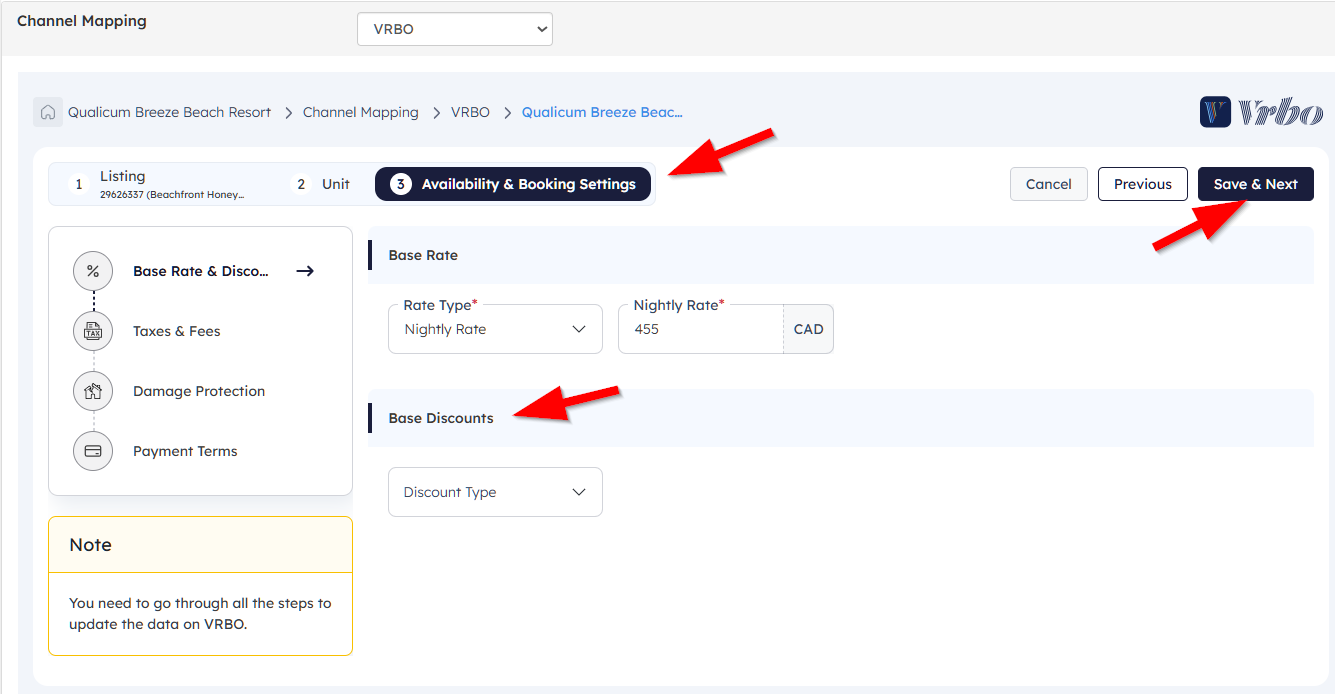
Note: For VRBO you need to click through and save all of the remaining wizard steps (Taxes & Fees, Damage Protection, Payment Terms) in order for your changes to actually be updated on VRBO.
4. Airbnb & VRBO Onboarding Help
4.1 What is the purpose of the Onboarding page?
The Onboarding page collects essential information required to set up and connect your property to Airbnb and VRBO channels. This includes account credentials, listing URLs, and tax/fee settings.
4.2 What account information do I need to provide?
You need to enter your Airbnb and VRBO account usernames, passwords, verification phone numbers, and any relevant notes. This information is used to facilitate the integration process with these channels.
4.3 Why do I need to provide listing URLs?
Listing URLs for each of your Airbnb and VRBO units help OnRes identify and connect your specific properties to the correct channel listings. Enter each URL on a separate line for clarity.
4.4 What should I do if my tax and fee settings differ between OnRes and Airbnb/VRBO?
If your tax and fee settings in OnRes do not match those in your Airbnb or VRBO accounts, specify the correct settings in the provided field. This ensures accurate rate and fee synchronization across platforms.
4.5 What is the VRBO payment information form?
During VRBO setup, you may be required to complete a payment information form to pay VRBO commissions. An example screenshot is provided for reference. Follow VRBO’s instructions to complete this step if prompted.
5. Google Hotels
5.1 What is Google Hotels and how does OnRes connect to it?
Google Hotels is a meta-search channel that displays hotel rates directly in Google Search and Google Maps, allowing travelers to compare prices and book stays without needing to visit an OTA. When a guest clicks through from Google Hotels, they can be directed to your own booking page.
OnRes connects to Google Hotels through Google's Hotel API, automatically pushing your room availability, rates, restrictions, taxes, and promotions in real time whenever changes are made in OnRes. There is no manual export required — updates flow through automatically.
5.2 How do I get connected to Google Hotels?
If you are interested in connecting your property to Google Hotels, please contact OnRes Support and we will assist you with the onboarding process.
5.3 What information does OnRes send to Google Hotels?
OnRes sends the following data to Google Hotels:
- Room Content — room type name, description, photos, and maximum guest capacity
- Rate Plans — rate plan names and their association to room types
- Rates — nightly rate amounts, including occupancy-based pricing if applicable
- Inventory — room availability counts by date
- Restrictions — minimum/maximum nights stay, closed-on-arrival, closed-on-departure, blackout dates, and advance booking limits
- Taxes & Fees — taxes (GST, PST, Room Tax) and service fees per rate plan
- Promotions — special deals and discounts configured in OnRes
All updates are sent automatically in real time as changes are made in OnRes.
5.4 Why are only some of my rate plans showing on Google Hotels?
Only rate plans that are designated as BAR (Best Available Rate) in OnRes are synced to Google Hotels. This is by design — Google Hotels is intended to display your publicly available best rates, so restricted or private rate plans (such as corporate, loyalty, or promotional-only plans) are not pushed to Google.
If you expect a rate plan to appear on Google Hotels but it is not, verify that the rate plan is marked as BAR in your Rate Group settings. Contact OnRes Support if you need help reviewing your rate plan configuration.
5.5 How far in advance does OnRes sync rates and inventory to Google Hotels?
OnRes syncs rates and inventory to Google Hotels up to a configured advance booking window. This window is set at the system level and applies globally to all properties connected to Google Hotels. Dates beyond this window are not sent to Google — they will appear as unavailable until they fall within the window.
The advance windows for rates and inventory may differ slightly. If you have questions about the window configured for your property, please contact OnRes Support.
5.6 Which rate restrictions are synced to Google Hotels?
OnRes syncs the following restrictions to Google Hotels for each room type and rate plan combination:
- Minimum Nights Stay — including per-weekday minimums
- Minimum Nights Stay on Arrival — including per-weekday settings
- Maximum Nights Stay — including per-weekday maximums
- Maximum Nights Stay on Arrival — including per-weekday settings
- Closed on Arrival (CoA) — including per-weekday settings
- Closed on Departure (CoD) — including per-weekday settings
- Blackout Dates — dates where the product is blocked from sale
- Minimum / Maximum Advance Booking — how many days in advance a guest must book
Restrictions are re-sent to Google Hotels whenever rates are updated or a product resync is triggered.
5.7 How are taxes and fees handled on Google Hotels?
OnRes sends tax and fee information to Google Hotels on a per-rate-plan basis. The following types are supported:
- Taxes — GST, PST, and Room Tax (as configured in your OnRes tax settings)
- Fixed Fees — a flat fee per stay or per night
- Percentage Fees — a fee calculated as a percentage of the room rate
Google Hotels uses this information to display an all-inclusive price to guests, which improves transparency and can help reduce booking abandonment. Tax and fee data is re-synced whenever your configuration changes.
5.8 Does OnRes support Google Hotels promotions?
Yes. OnRes supports syncing promotions to Google Hotels. When a promotion is created or updated in OnRes, it is automatically pushed to Google. Promotions can also be deleted individually or cleared entirely.
Promotions that appear on Google Hotels can help your property stand out in search results by highlighting special deals such as early bird discounts or limited-time offers. For help setting up promotions in OnRes, contact OnRes Support.
5.9 My rates or availability on Google Hotels look incorrect — how do I fix it?
Before investigating, confirm that the data in OnRes itself is correct — check your rates, inventory, blackouts, and restrictions for the dates in question.
If the OnRes data looks correct, you can trigger a resync of the affected product by simply opening the product in OnRes and saving it. This causes OnRes to re-send all rates, availability, and restrictions for that room type to Google Hotels, overwriting whatever Google currently has on file.
In addition, OnRes performs a nightly resync of all eligible products automatically, so any discrepancies will typically be corrected overnight without any manual action. If the issue persists after a resync and an overnight cycle, please contact OnRes Support for further investigation.
5.10 How do I exclude a product from syncing to Google Hotels?
Only products that have at least one rate group with the rate type set to RACK/BAR are eligible to sync to Google Hotels. To exclude a product from Google Hotels, remove the RACK/BAR rate type from all rate groups that are associated with that product. Once no BAR rate plan is linked to the product, it will no longer be pushed to Google Hotels.
Note that this affects what is sent to Google Hotels only — the product will continue to behave normally on your OnRes booking engine and any other connected channels.